
Step-by-step guide
How do I activate an eSIM on the Google Pixel Fold?
Google
Good to know first: Setting up your BuddySIM eSIM takes two steps – installing and activating. You can install it (scan the QR code, enter the details manually or via link) any time right after purchase. The eSIM is then on your device, but not yet active.
You activate the eSIM by turning on data roaming and selecting it as the line for mobile data. Important: activation can only happen in the destination country – only there does the eSIM connect to the local network, and only then does your plan's validity period start (except for global or Europe bundles, where Germany also counts as a destination).
- Open “Network & internet” in Settings.
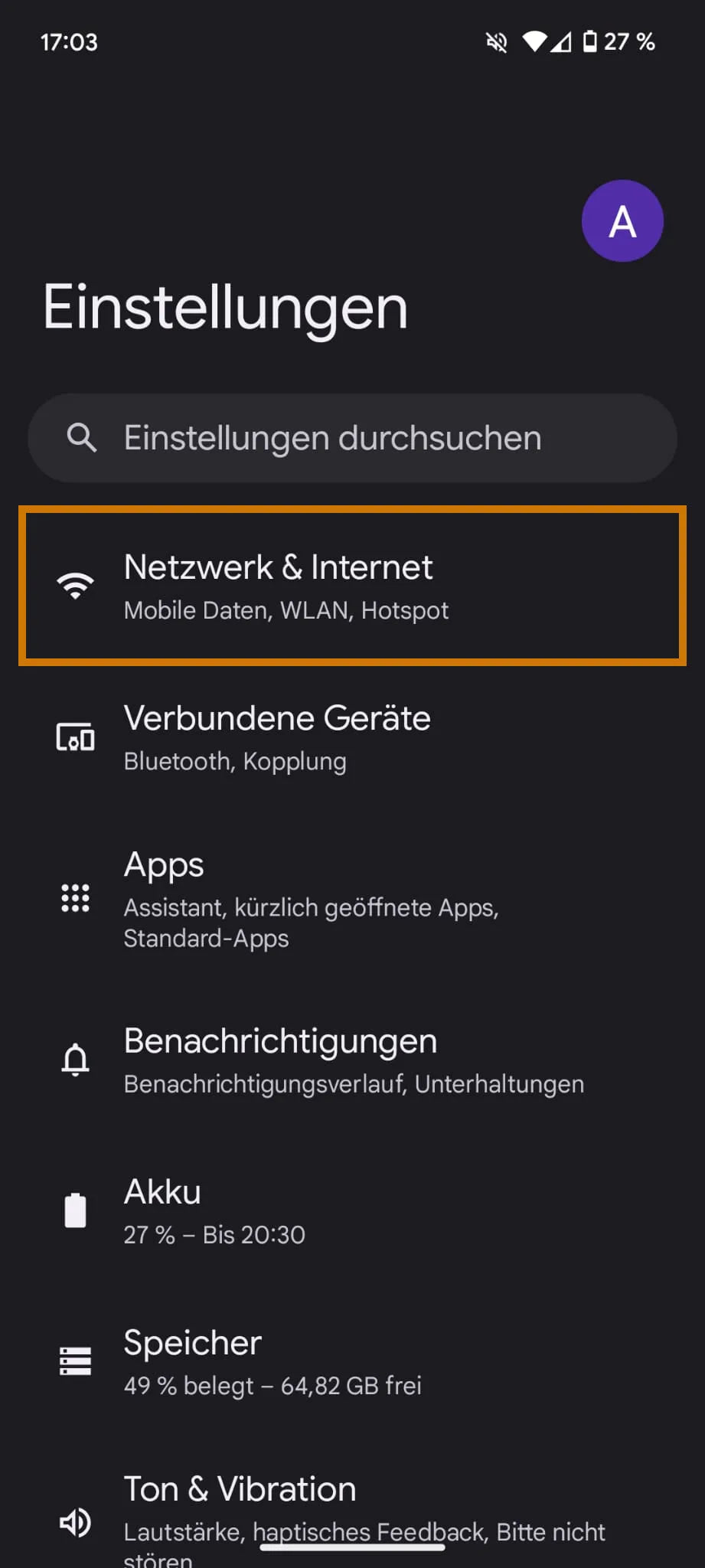
- Open “SIMs” there.
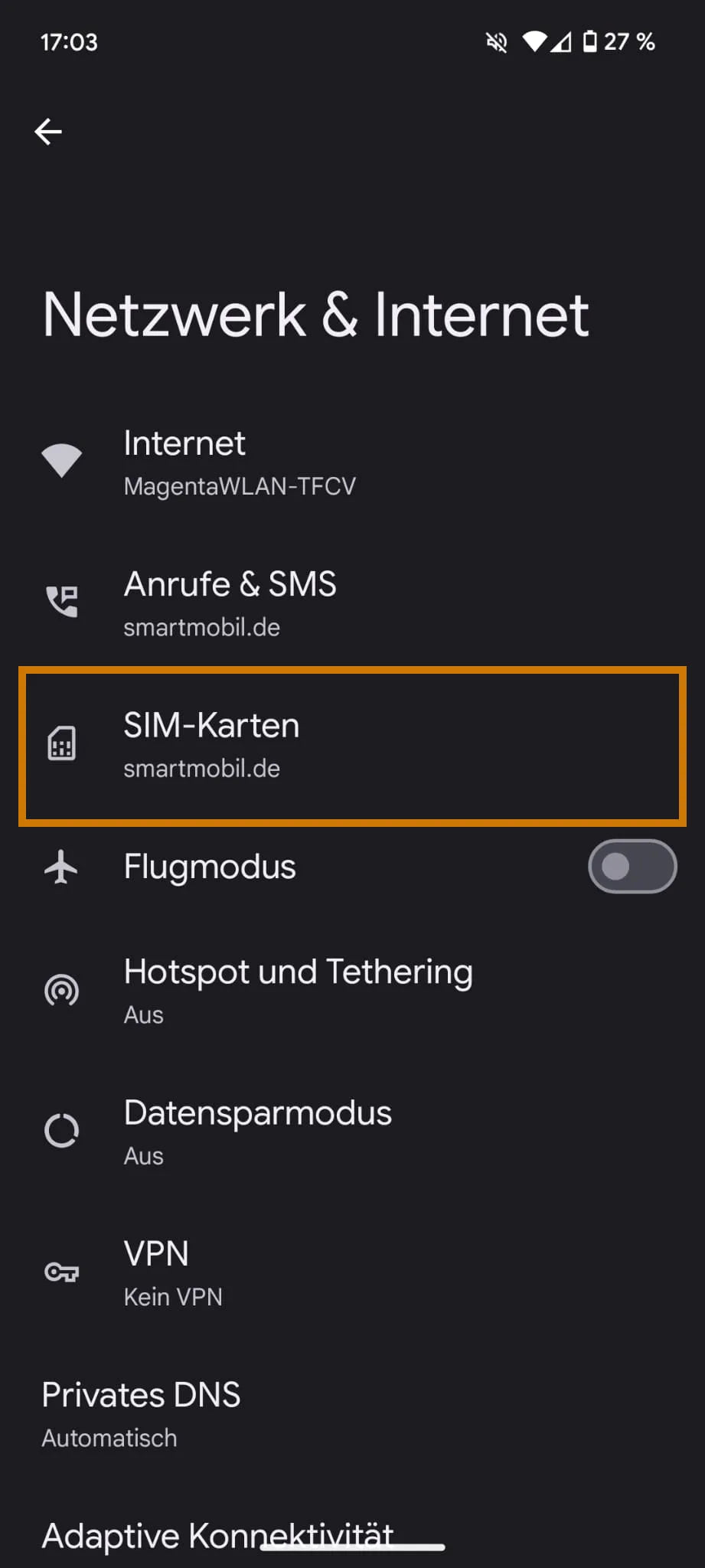
- Choose “Add SIM”.
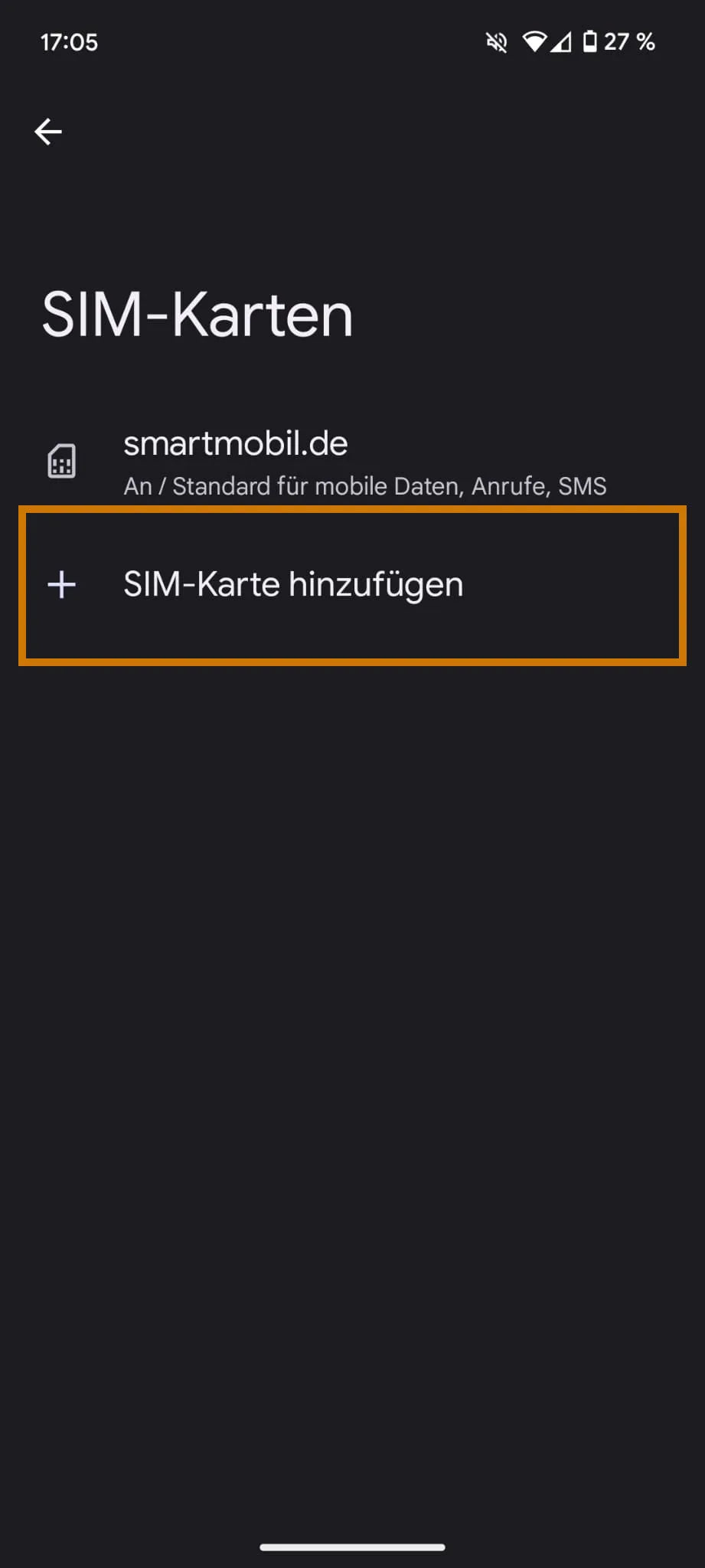
- Start the process via “Set up eSIM”.
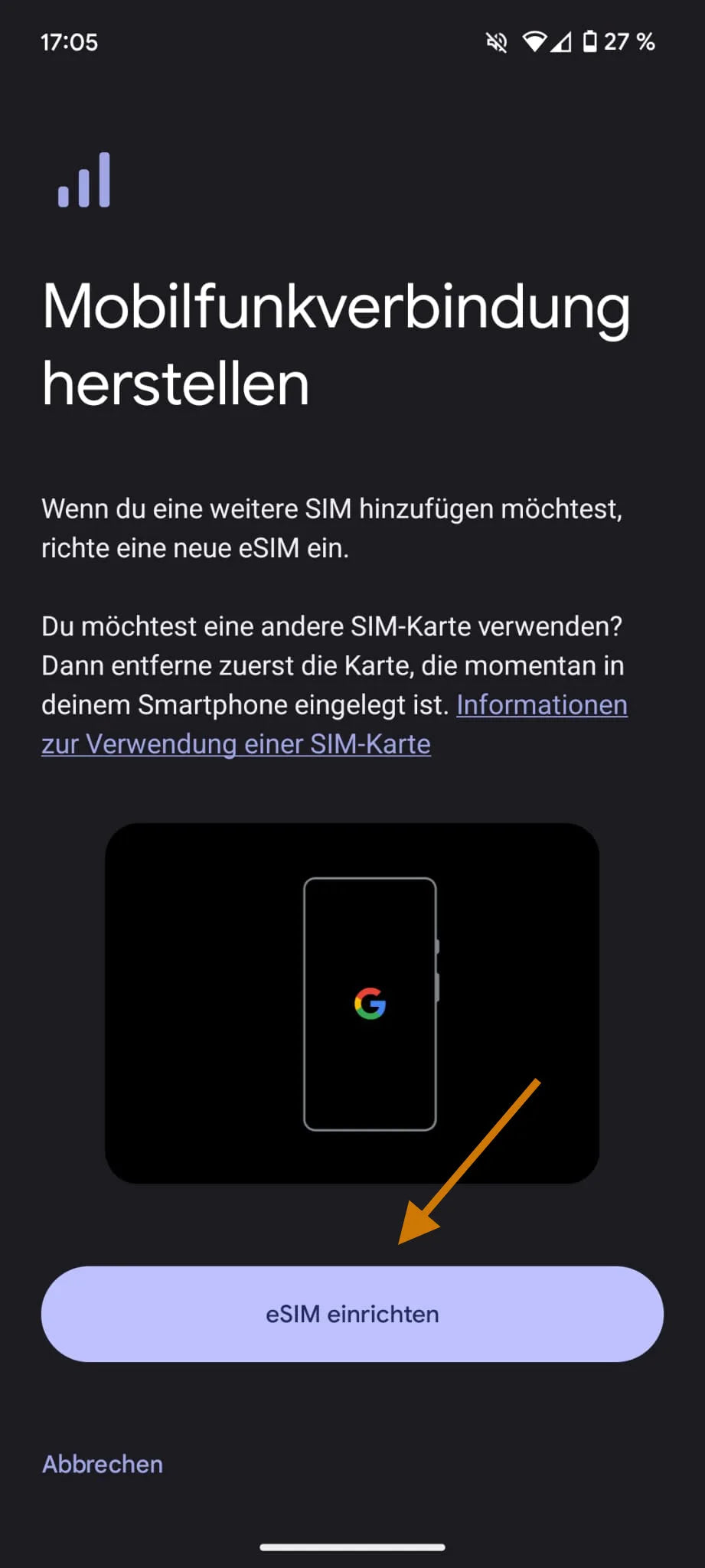
- Scan the QR code from our email.
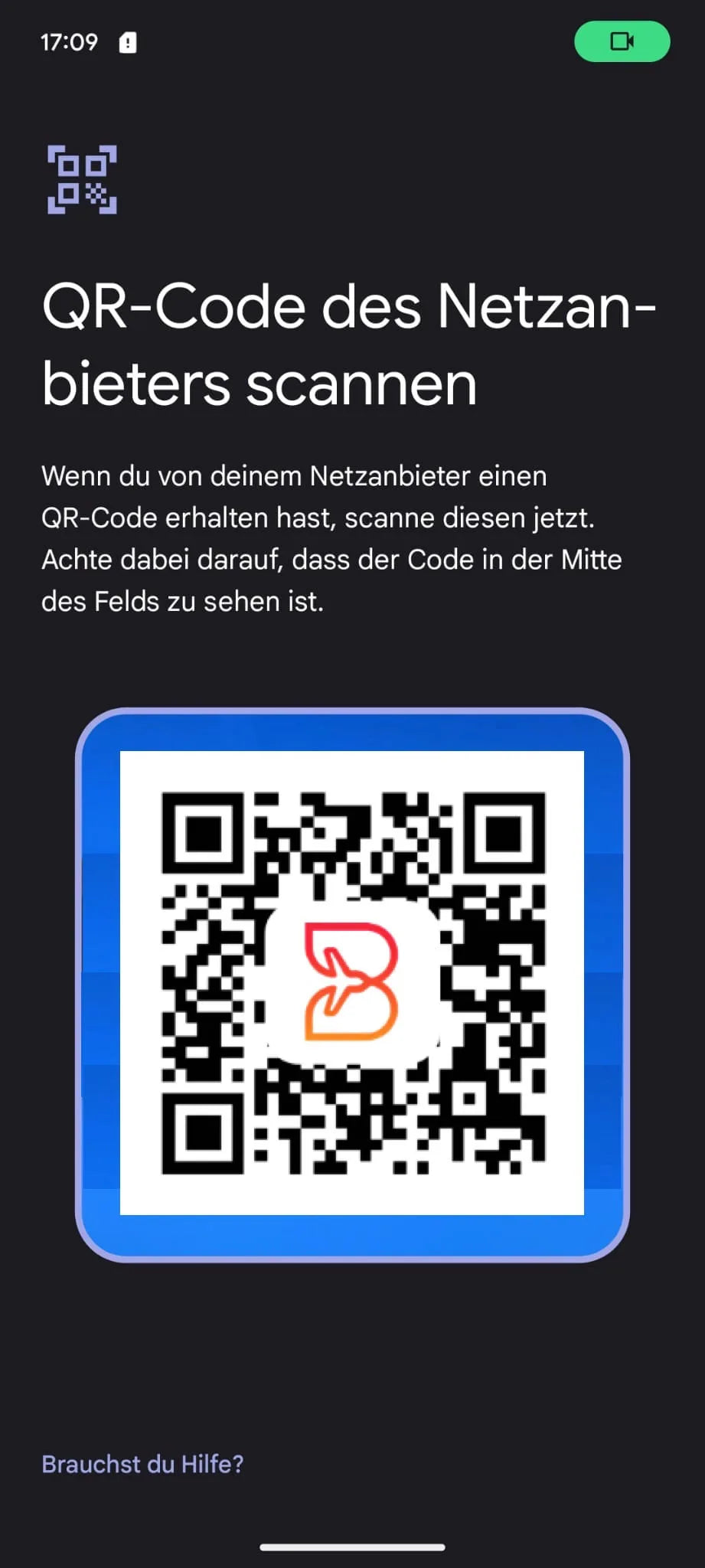
- Wait until the eSIM has been added. Don't interrupt the process.
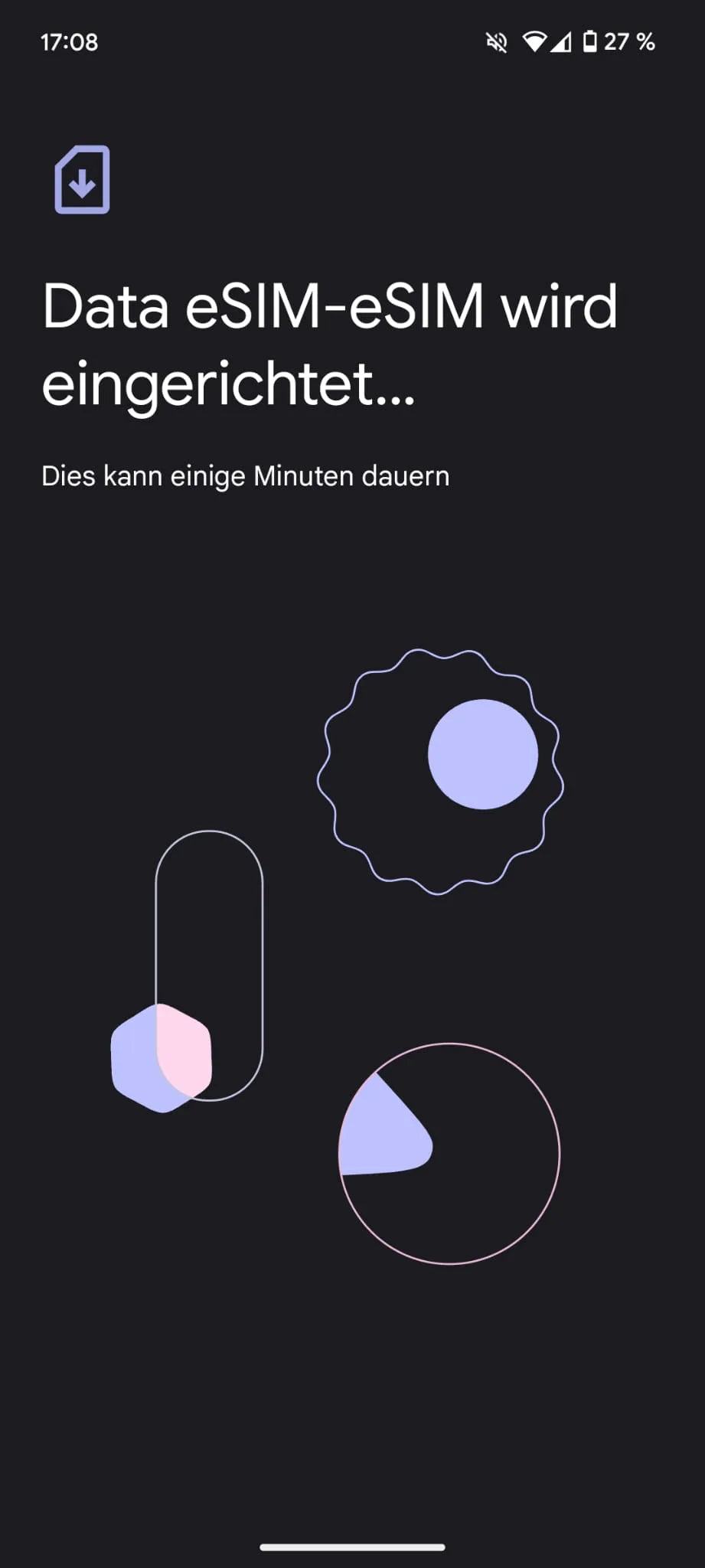
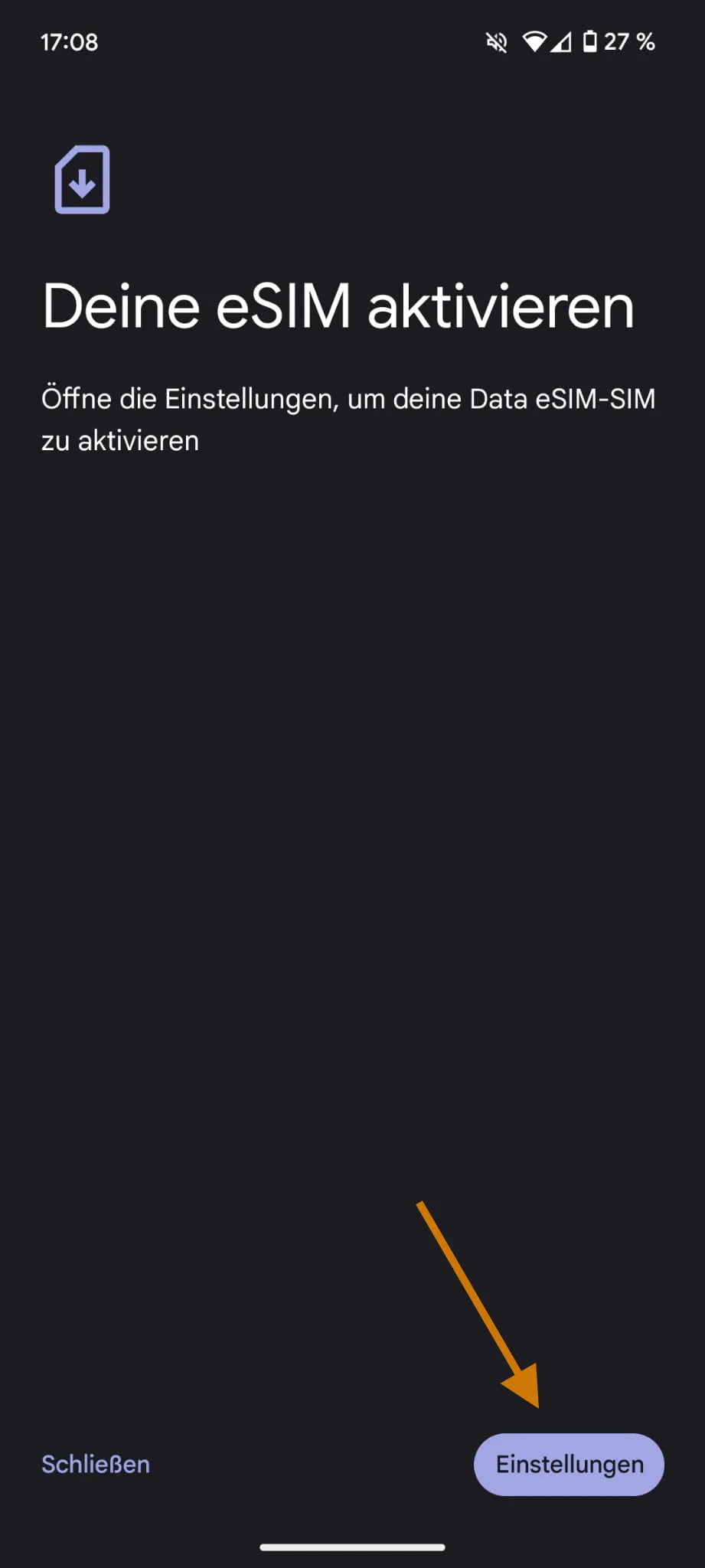
- Begin the activation from your Settings.
- After activation, use the eSIM for “mobile data”.
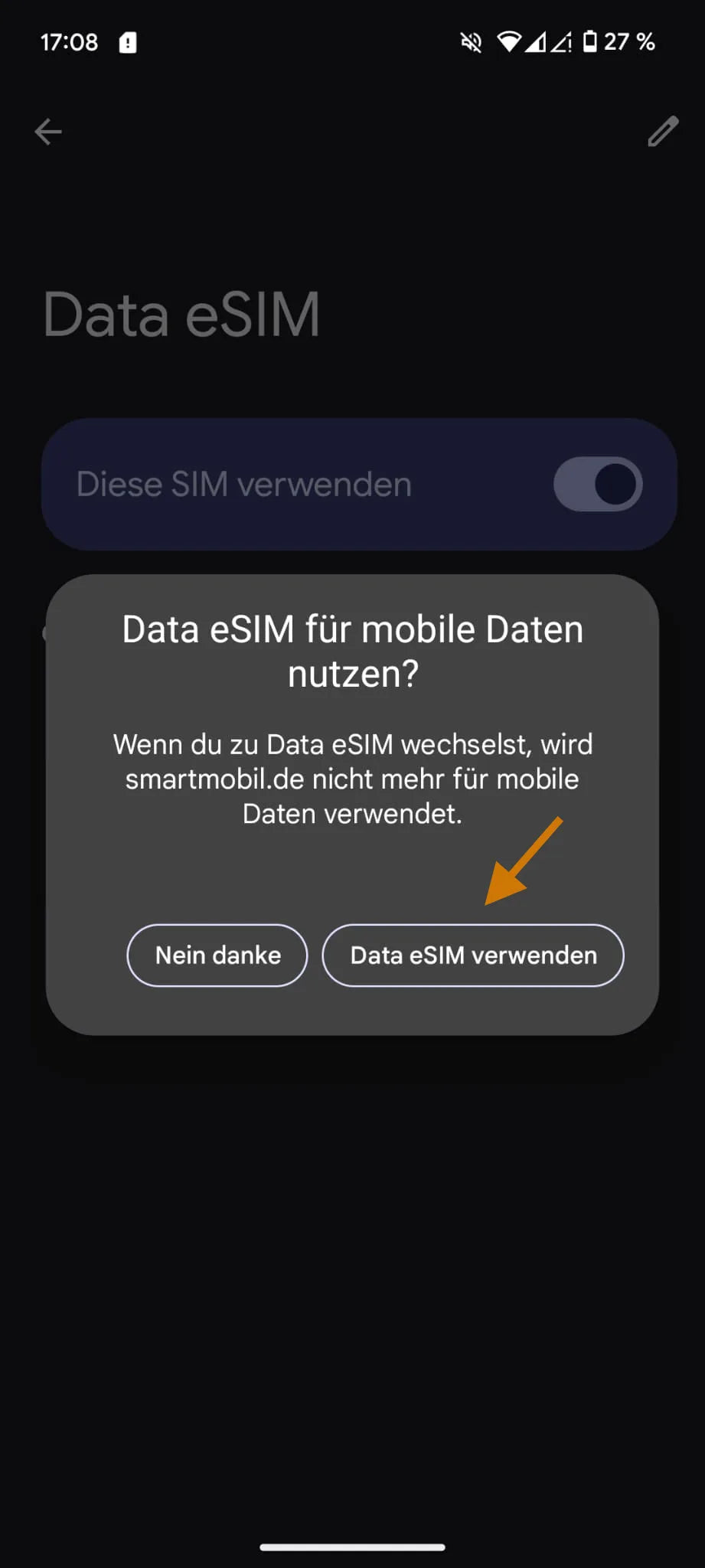
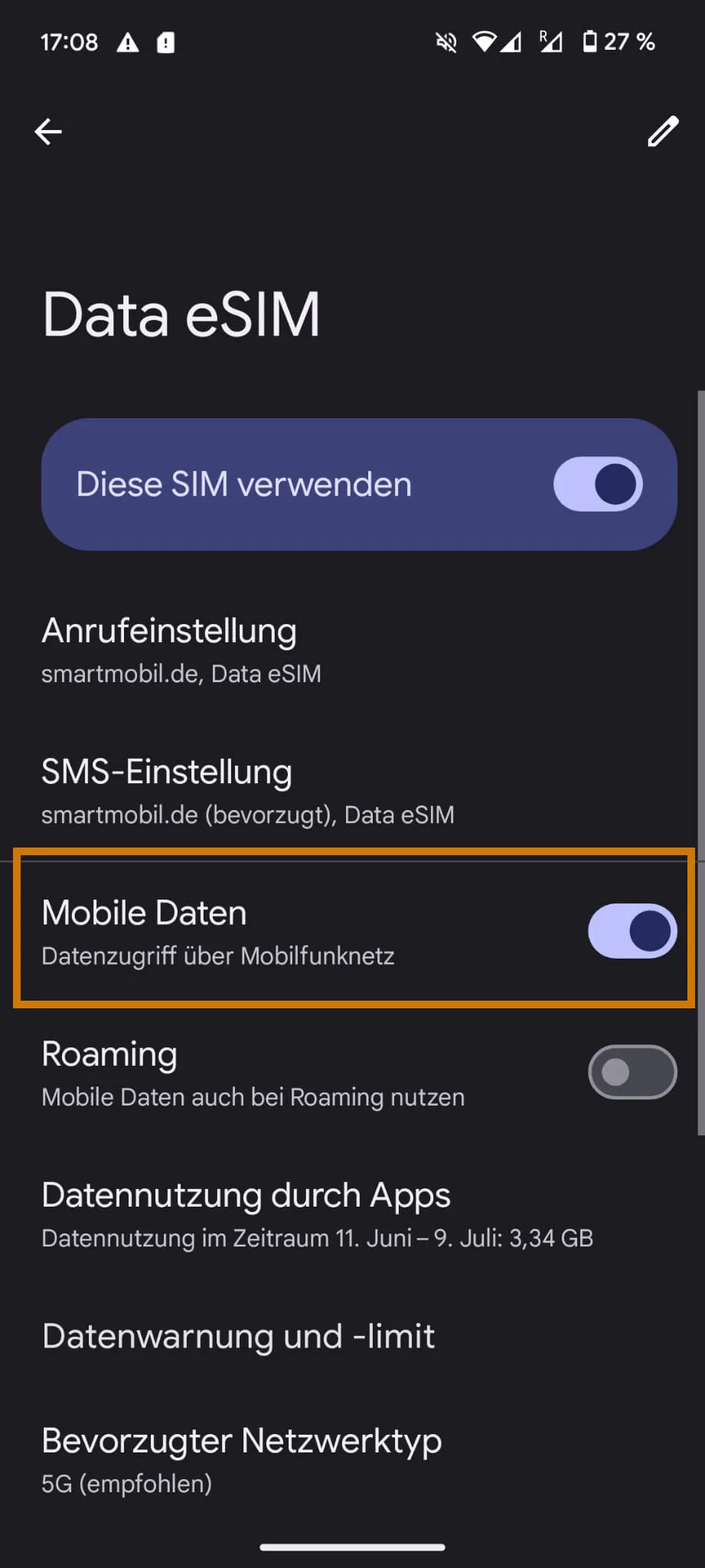
- Make sure mobile data is active on the eSIM.
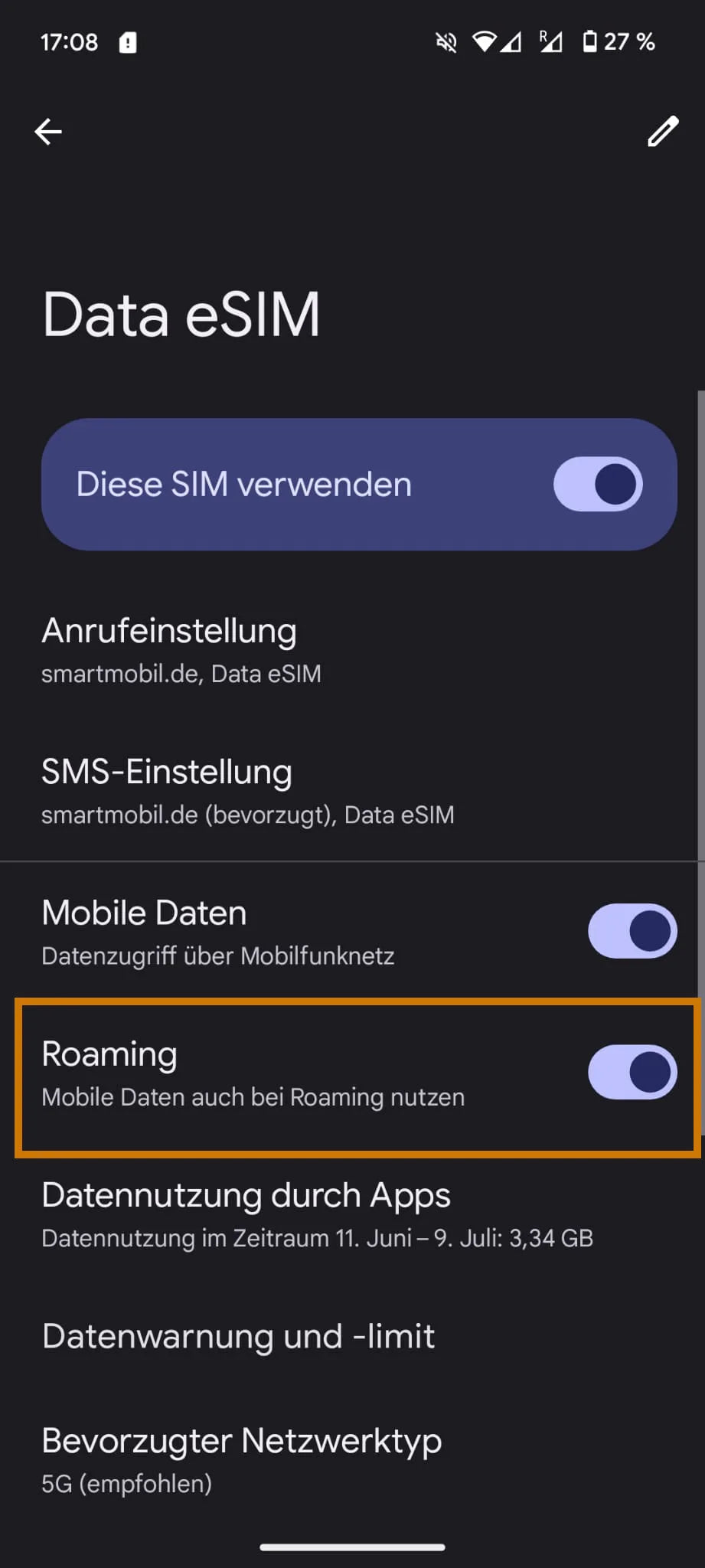
- Also enable “Roaming” on the eSIM.
- Open “Network & internet” in Settings.
- Open “SIMs” there.
- Choose “Add SIM”.
- Start the process via “Set up eSIM”.
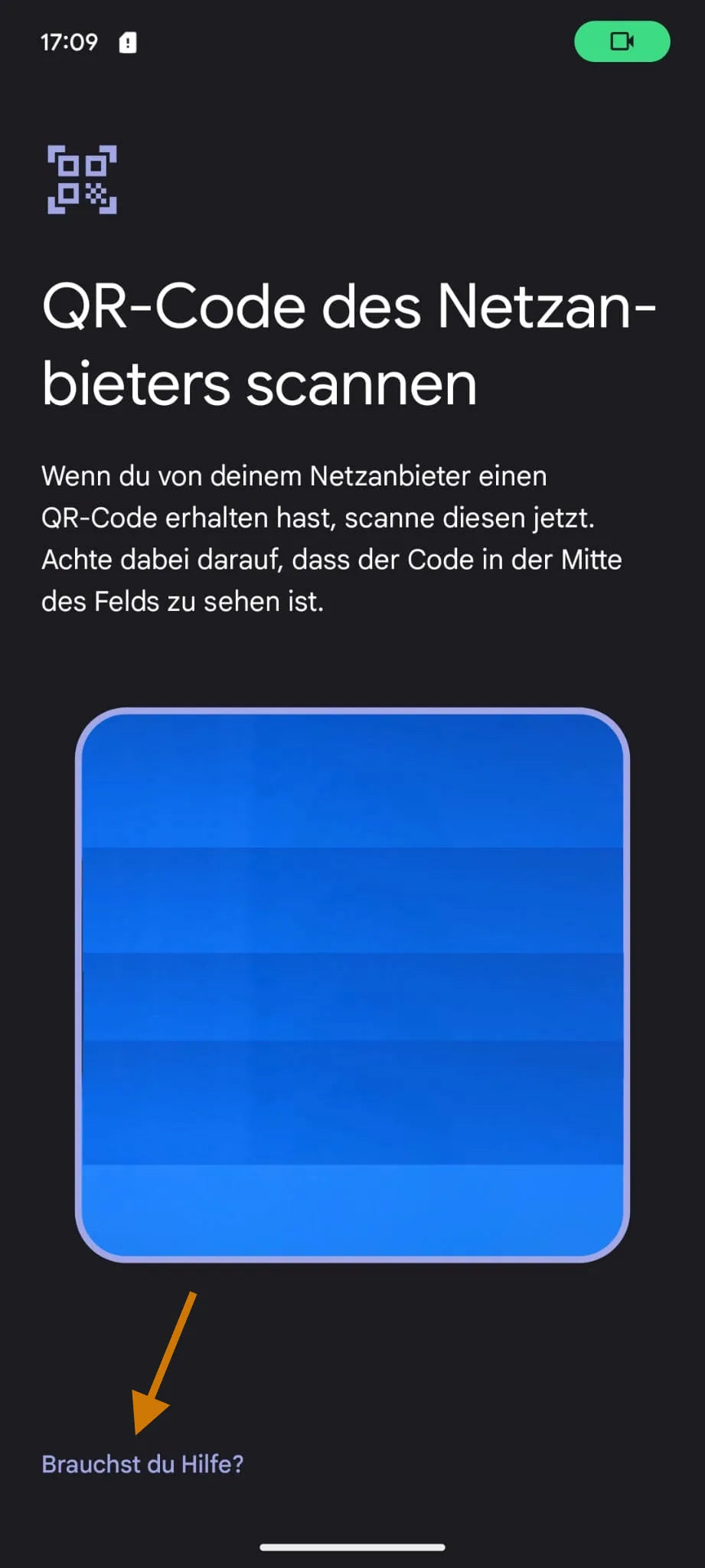
- First choose “Need help?”.
- Use the option “Enter it manually”.
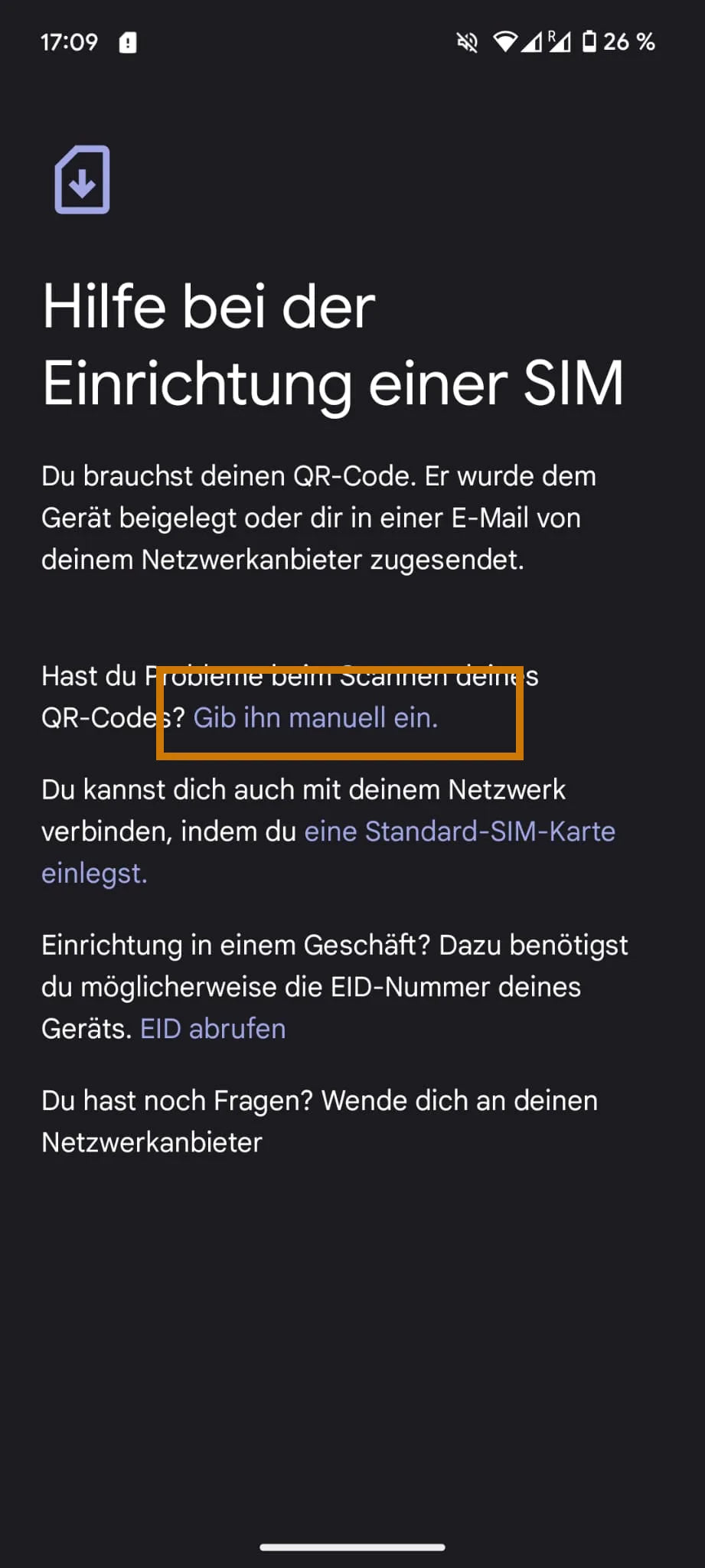
- Enter the code from our email in the Android format:
LPA:1$[SM-DP+ address]$[activation code]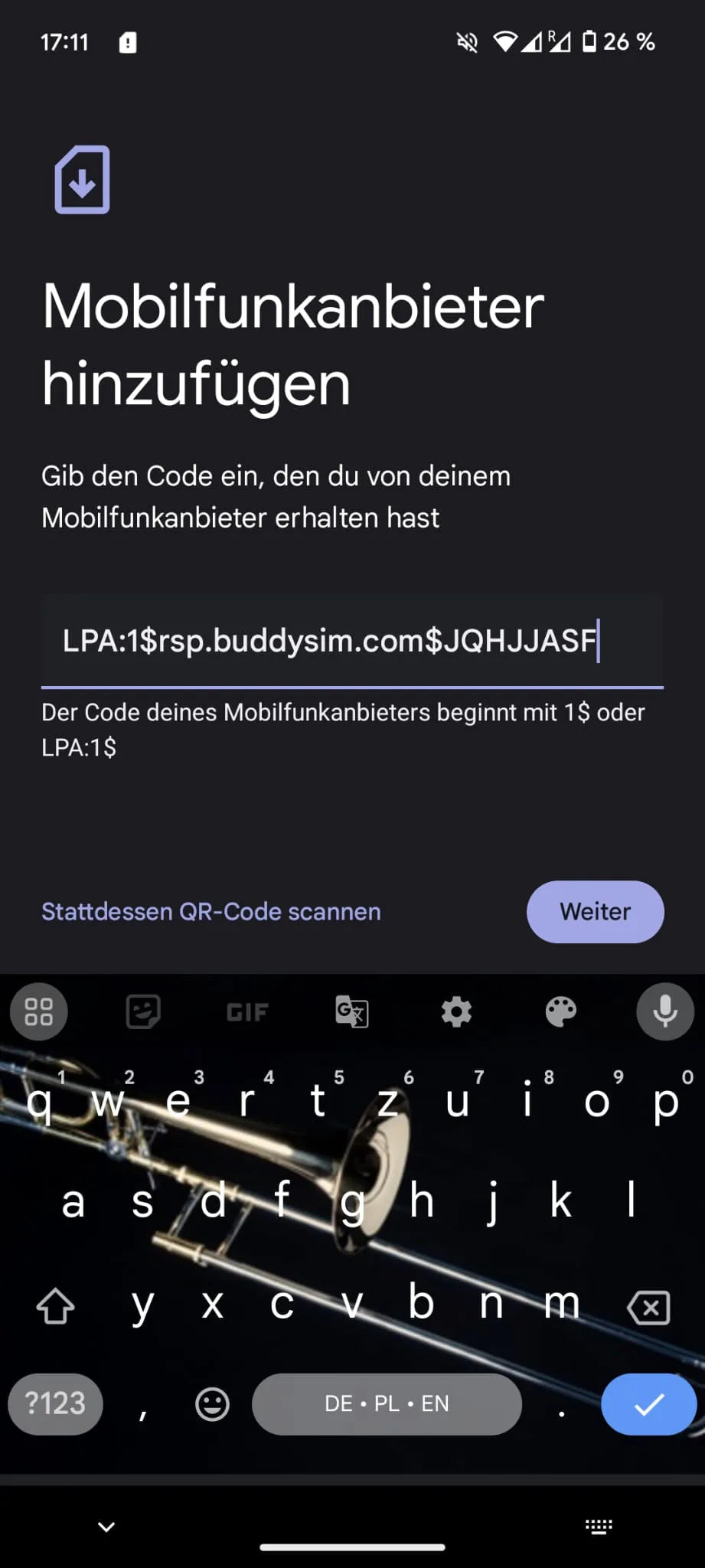
- After activation, use the eSIM for “mobile data”.
- Make sure mobile data is active on the eSIM.
- Also enable “Roaming” on the eSIM.
Questions or need help with activation?
Our support team is happy to help – via WhatsApp, email or phone.