
Step-by-step guide
How do I activate an eSIM on the Samsung Galaxy S24 Ultra?
Samsung
Good to know first: Setting up your BuddySIM eSIM takes two steps – installing and activating. You can install it (scan the QR code, enter the details manually or via link) any time right after purchase. The eSIM is then on your device, but not yet active.
You activate the eSIM by turning on data roaming and selecting it as the line for mobile data. Important: activation can only happen in the destination country – only there does the eSIM connect to the local network, and only then does your plan's validity period start (except for global or Europe bundles, where Germany also counts as a destination).
- Open “Connections” in Settings.
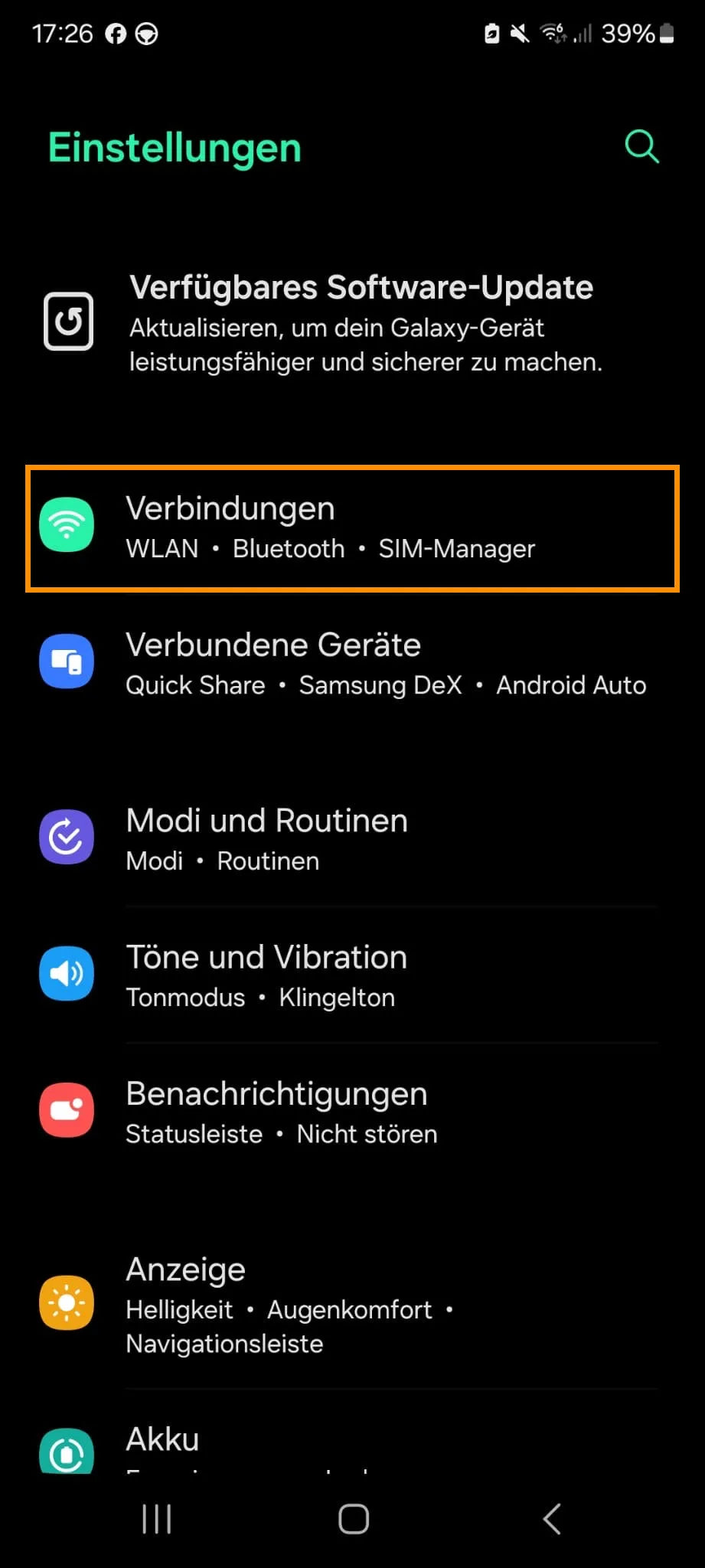
- Open “SIM Manager” or “Card management”.
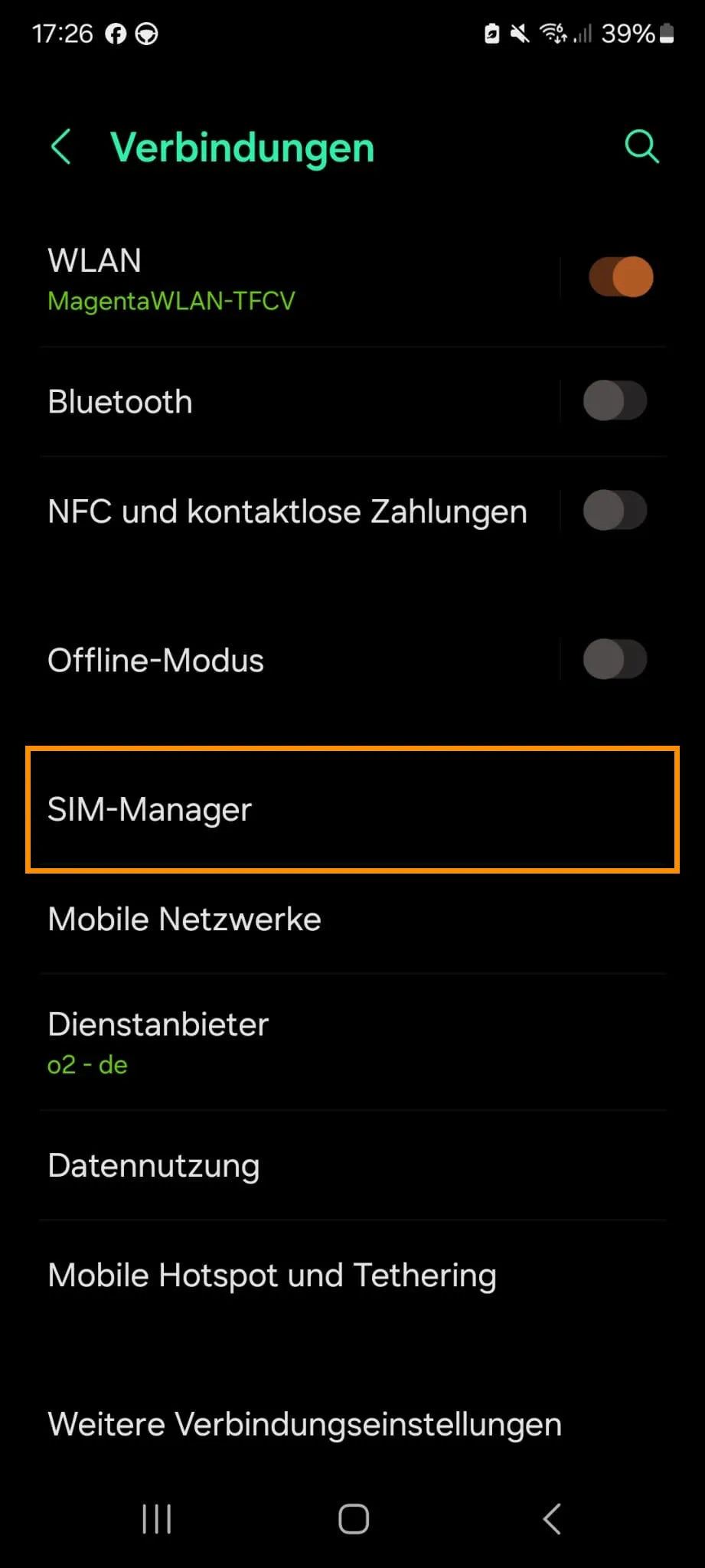
- Then choose “Add eSIM”.
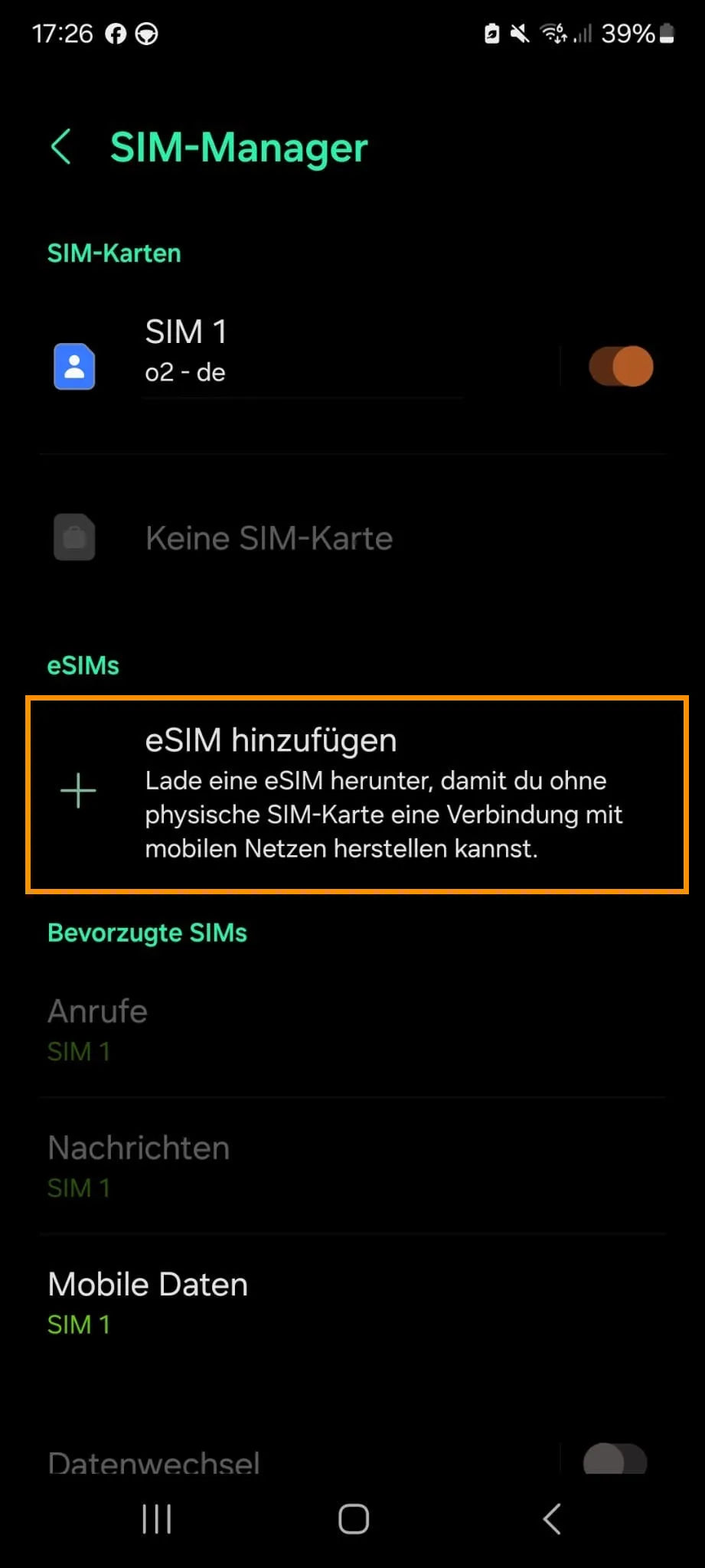
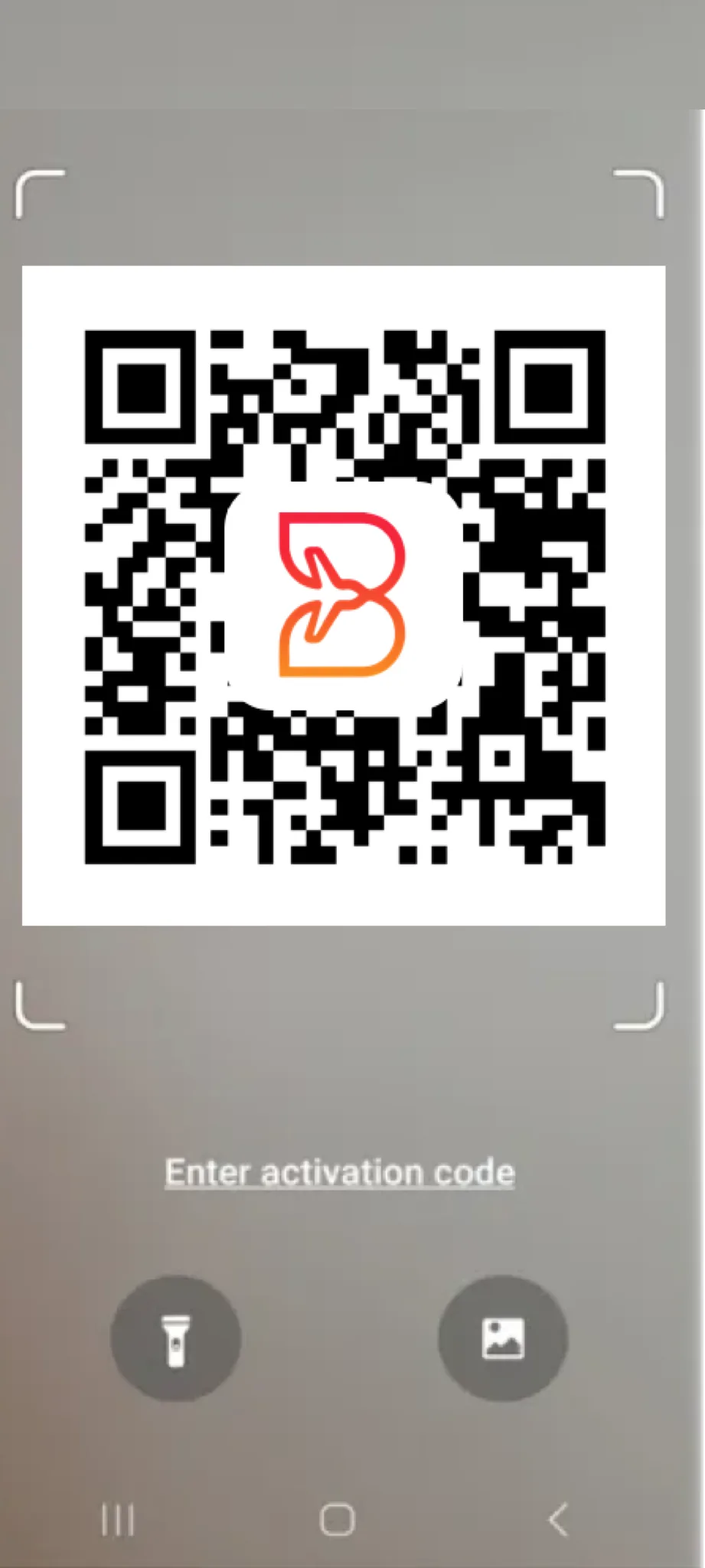
- Choose “Scan QR code”.
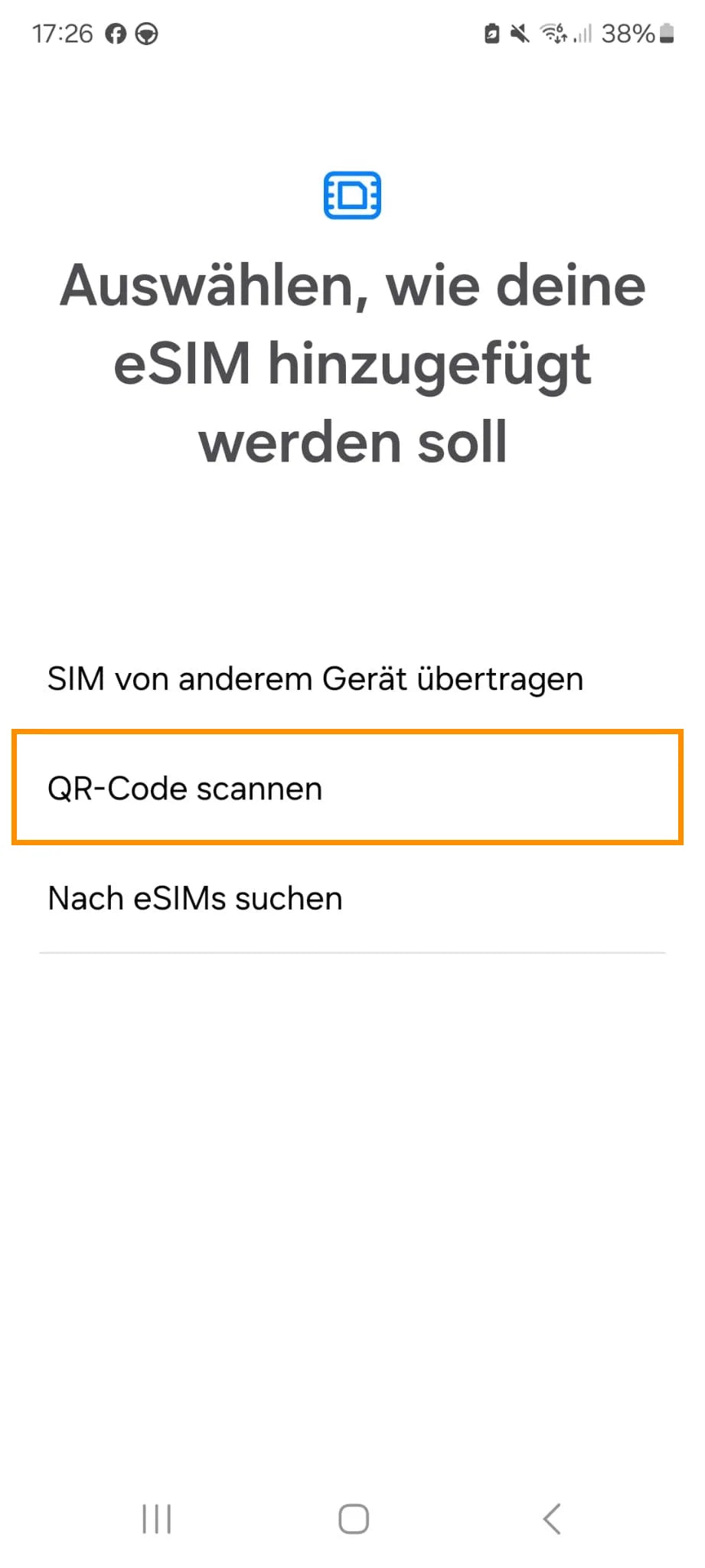
- Scan the QR code from our email.
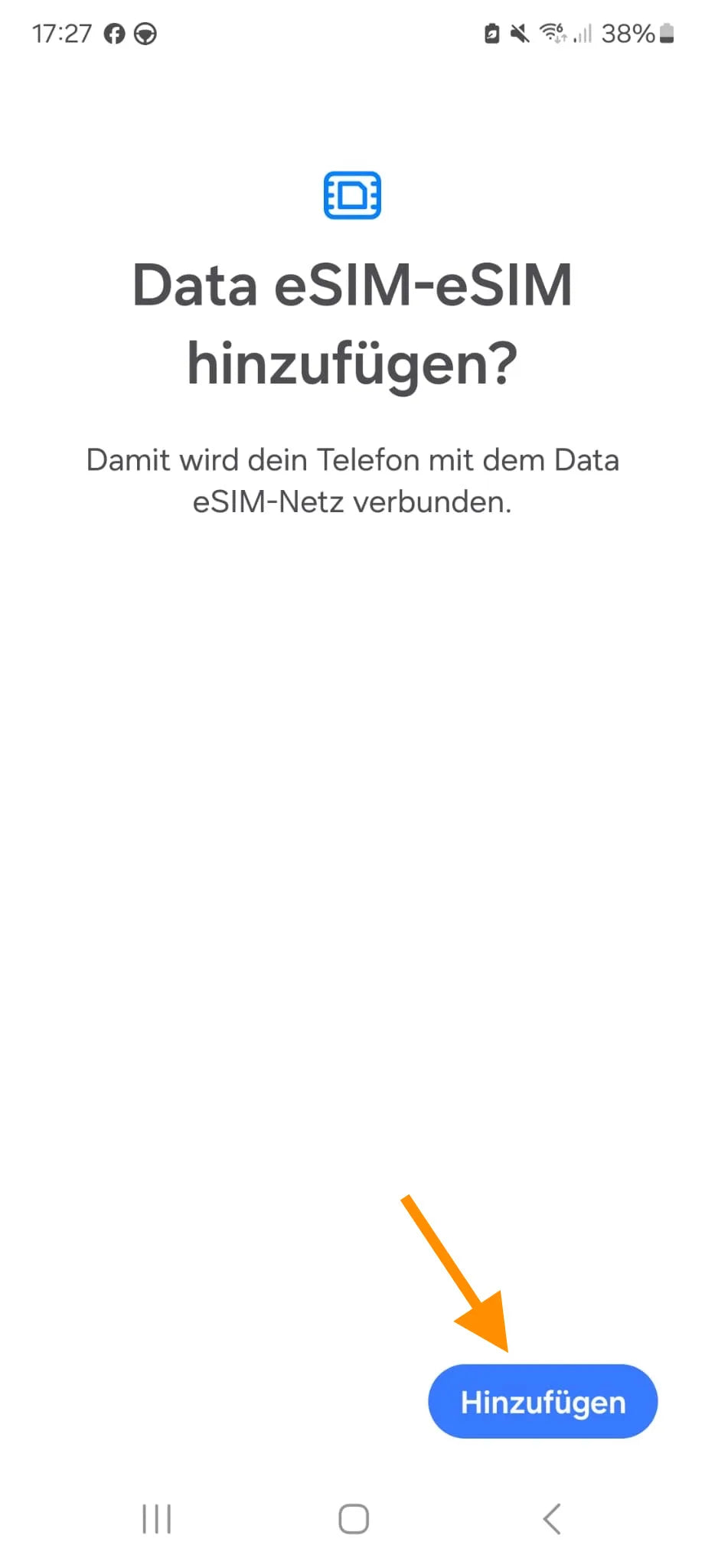
- Add the eSIM.
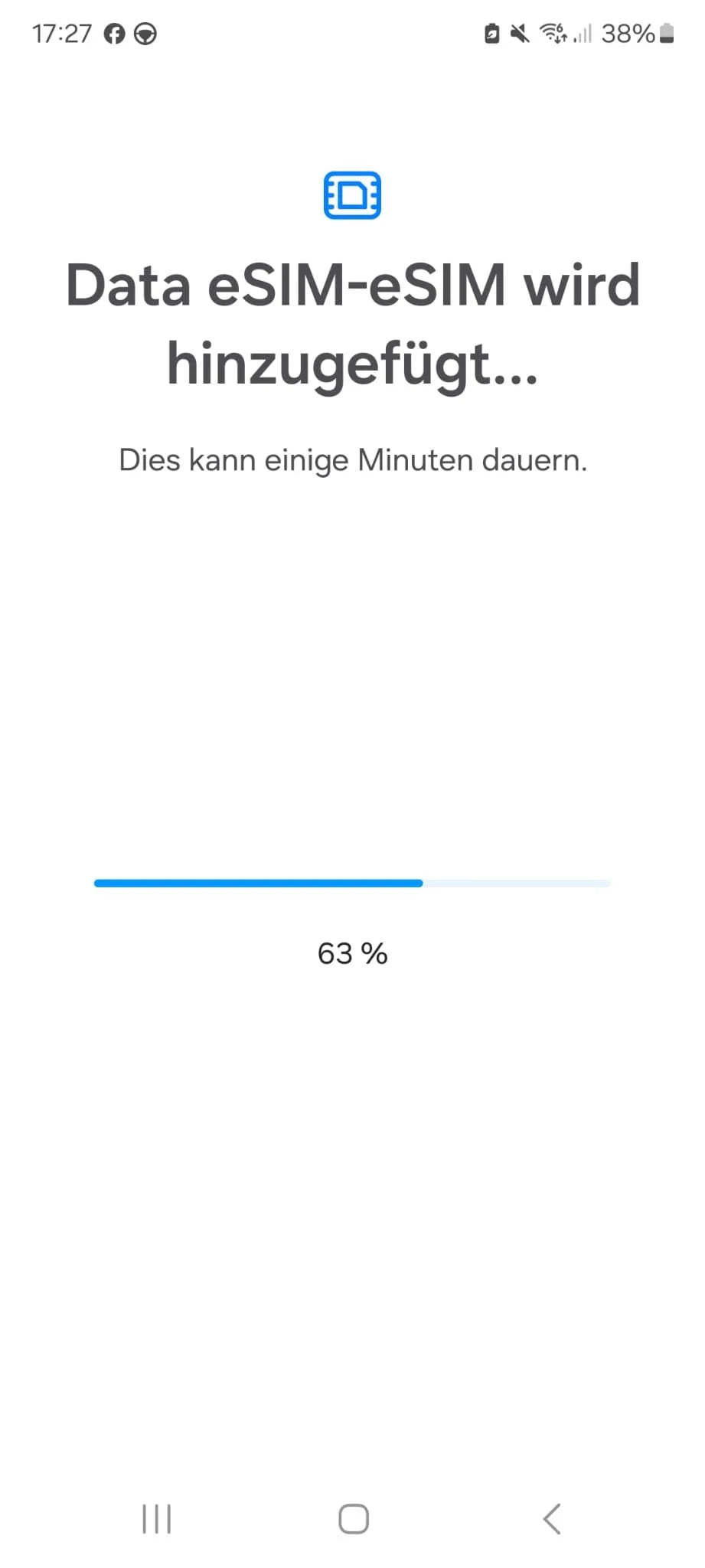
- Wait until the eSIM has been added. Don't interrupt the process.
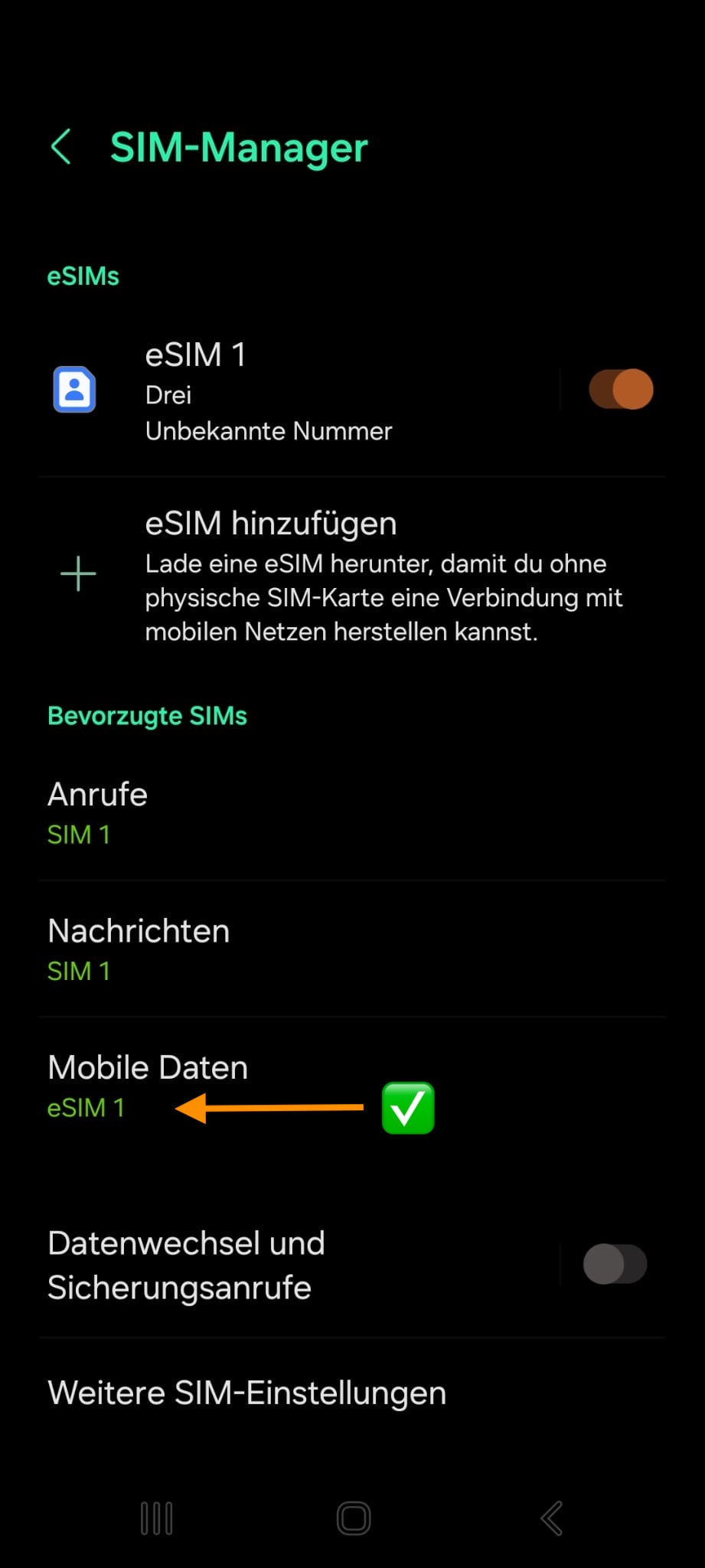
- You'll then find “eSIM 1” under Mobile Data.
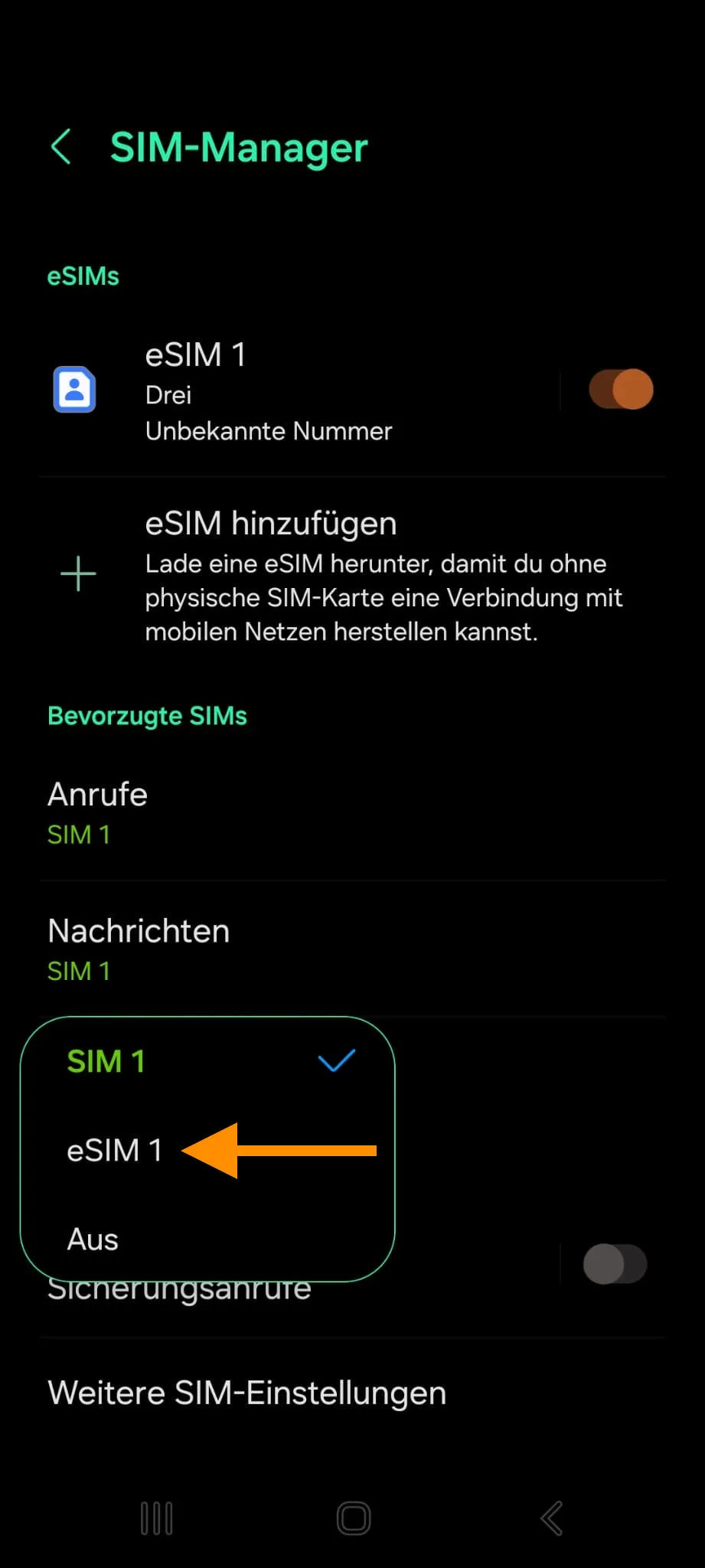
- Under Mobile Data, choose “eSIM 1” as the line.
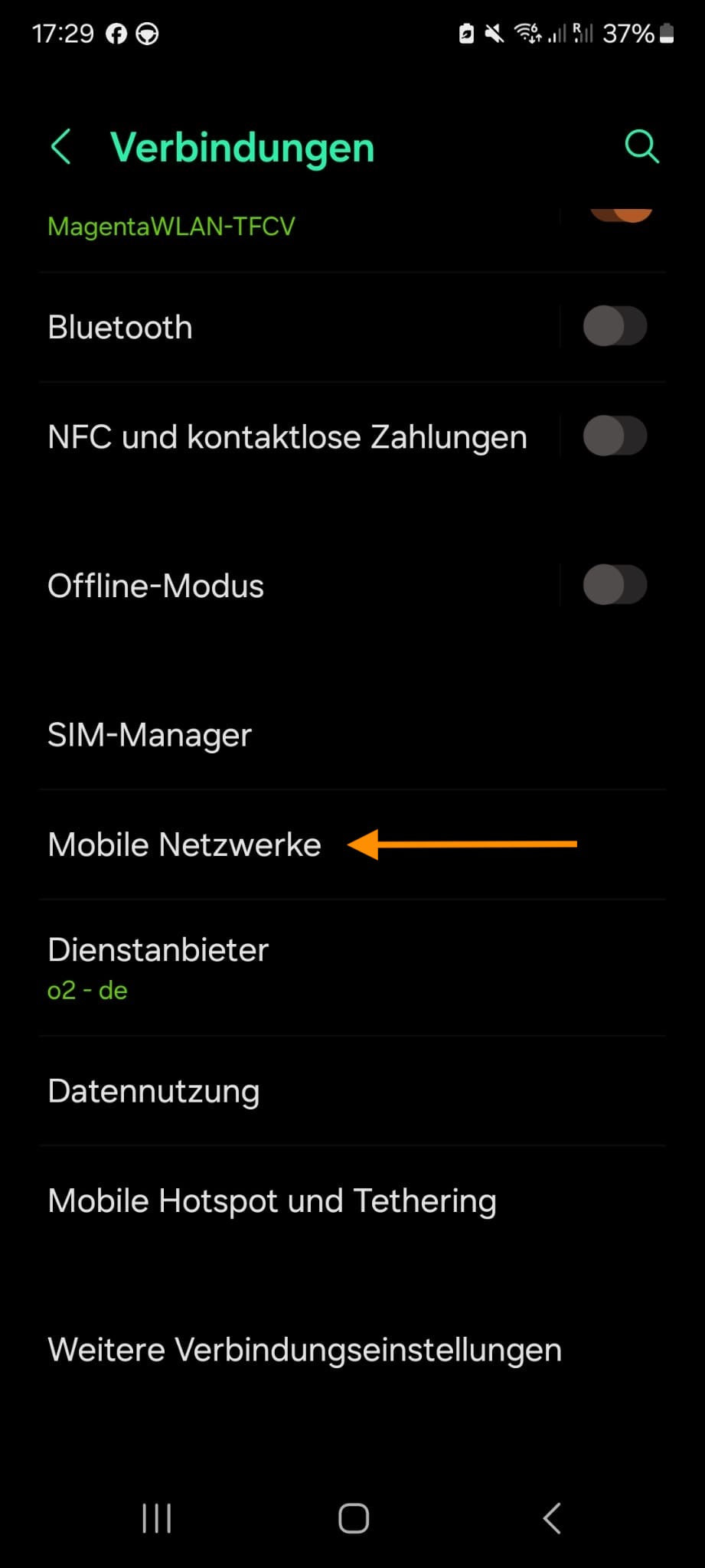
- Go back to Connections and open “Mobile networks”.
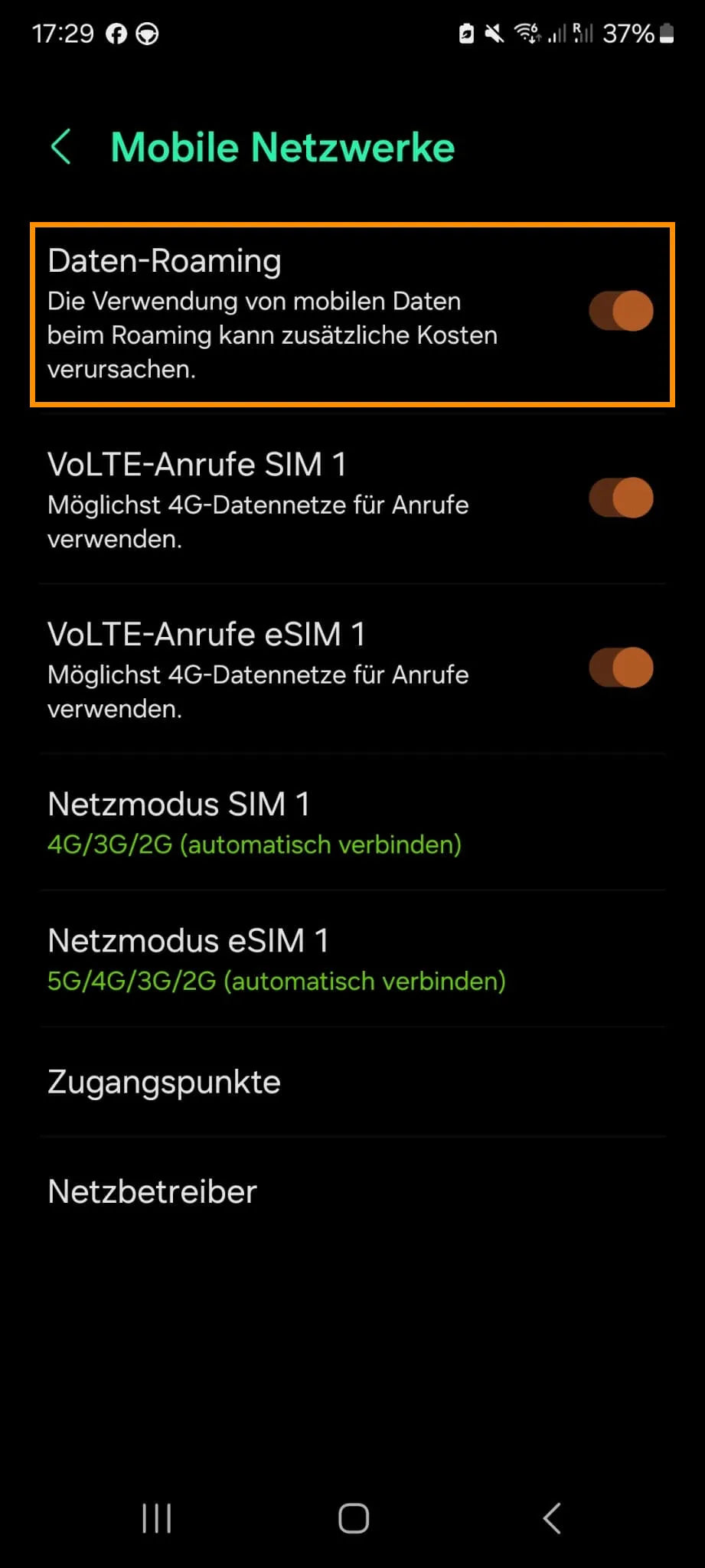
- Make sure “Data roaming” is enabled.
- Open “Connections” in Settings.
- Open “SIM Manager” or “Card management”.
- Then choose “Add eSIM”.
- First choose “Scan QR code”.
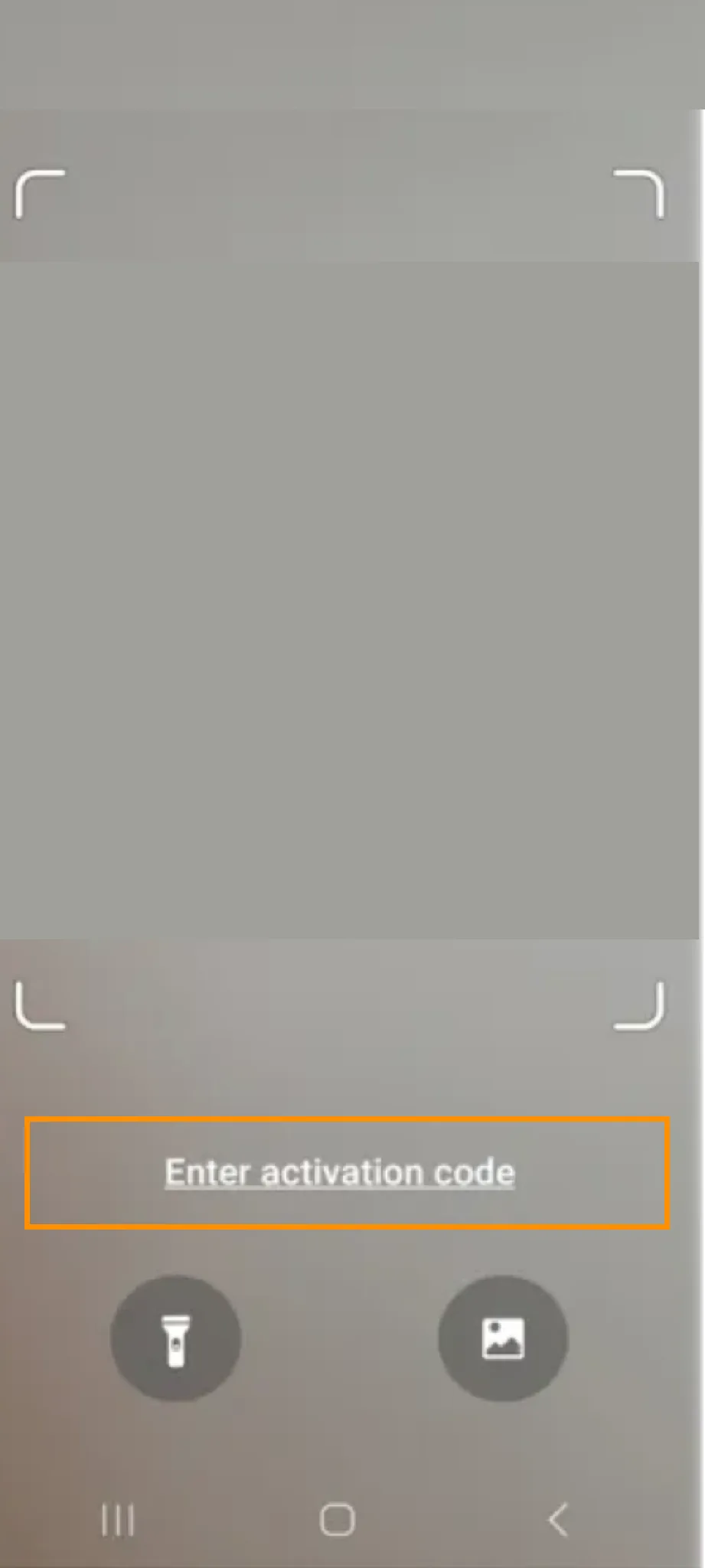
- Then, in camera mode, choose “Enter activation code”.
- Enter the code from our email in the Android format:
LPA:1$[SM-DP+ address]$[activation code]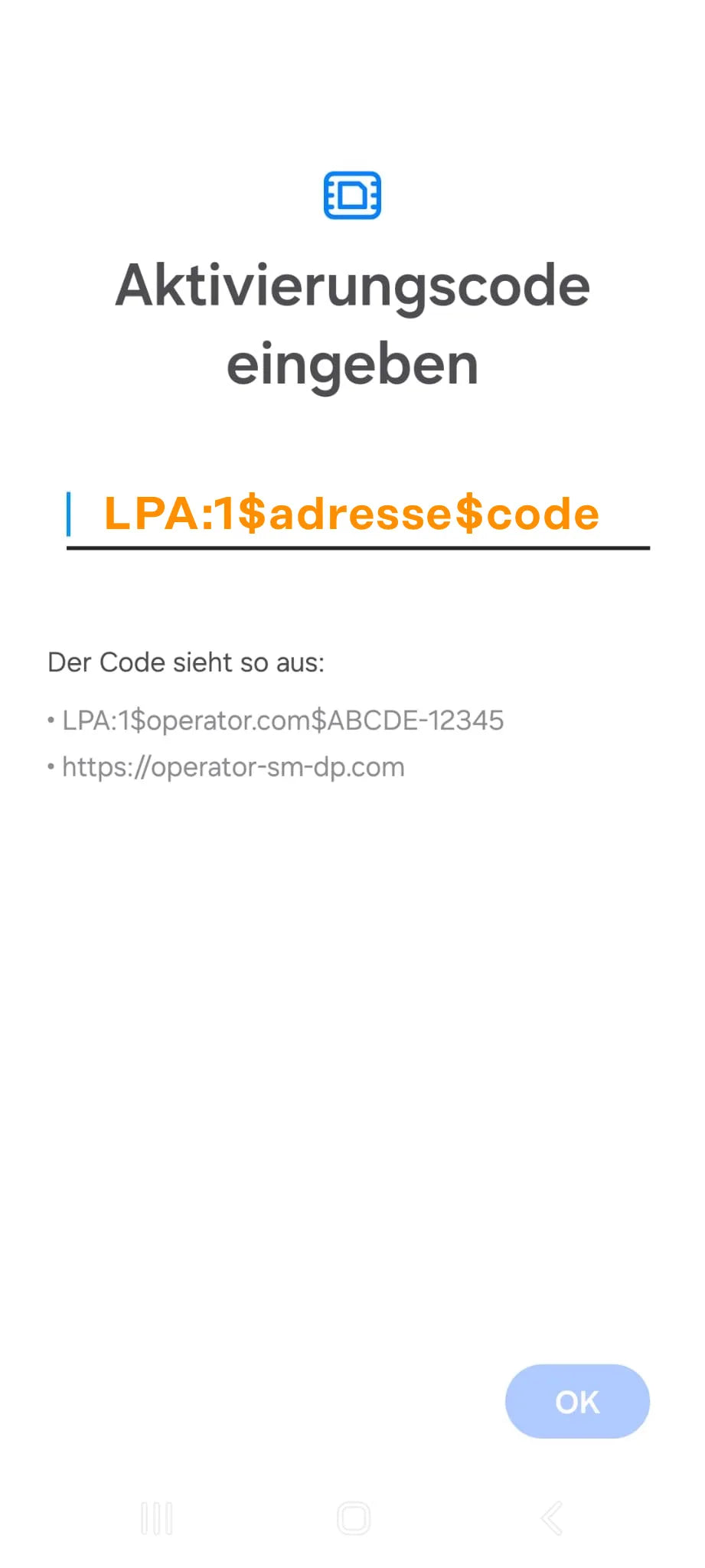
- Then add the eSIM.
- Wait until the eSIM has been added. Don't interrupt the process.
- You'll then find “eSIM 1” under Mobile Data.
- Choose “eSIM 1” for Mobile Data.
- Go back to Connections and open “Mobile networks”.
- Make sure “Data roaming” is enabled.
Questions or need help with activation?
Our support team is happy to help – via WhatsApp, email or phone.